Extensions That Pull Their Weight
A good extension quietly saves you minutes every day. A bad one slows your browser and reads more than it should. Here are four stops, each pairing a common annoyance with a tool that fixes it.
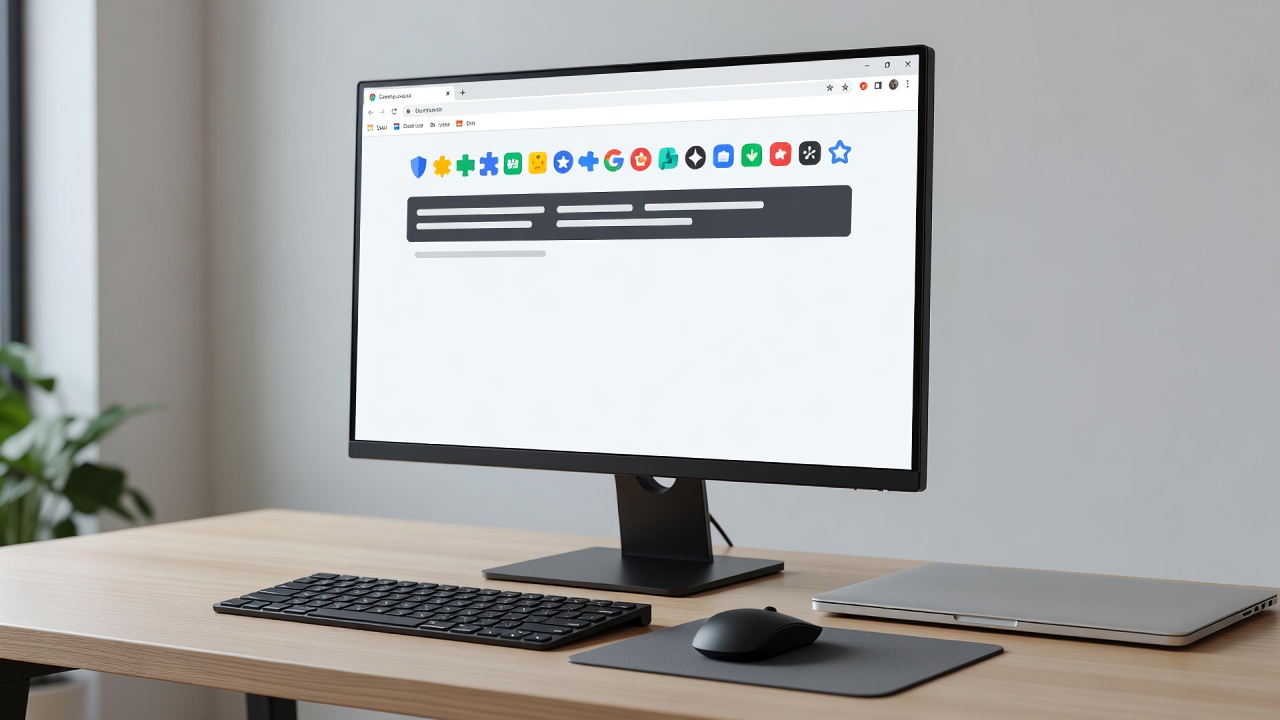
Clear the clutter
The task: pages jammed with autoplay videos, pop-ups and banners that push the actual article below the fold. A content blocker strips most of that away, and pages often load faster as a bonus.
uBlock Origin is the long-standing favourite: free, open source and light on memory. On Firefox you get the full edition. On Chrome, Google's Manifest V3 rules phased out the classic version, so the store offers uBlock Origin Lite instead, which covers the basics well. Privacy Badger, made by the Electronic Frontier Foundation, focuses on blocking trackers that follow you between sites.
Tools for this stop: uBlock Origin, uBlock Origin Lite and Privacy Badger. Consider allowing ads on small sites you want to support.
Read comfortably
The task: bright white pages at midnight, tiny fonts and sidebars that fight for attention. Before installing anything, try what your browser already has. Firefox and Safari include Reader View, and Microsoft Edge has Immersive Reader. One click turns a busy article into clean, adjustable text.
For a site-wide dark theme, Dark Reader is the go-to extension. It inverts colours intelligently, lets you tweak brightness and contrast, and can skip sites that already look good in dark mode.
Tools for this stop: built-in Reader View, Immersive Reader and Dark Reader.

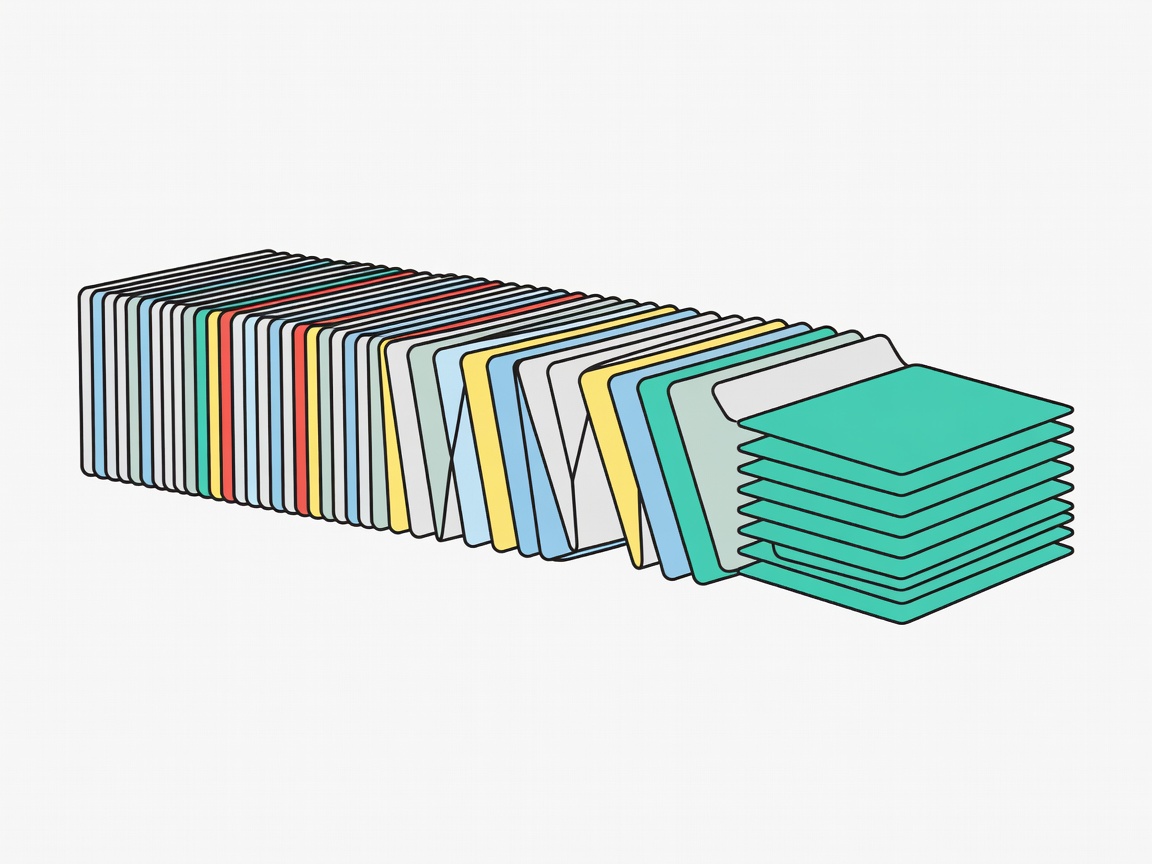
Tame your tabs
The task: forty tabs open, the fan is roaring, and you cannot find the one you need. Chrome and Edge now offer built-in tab groups: right-click a tab, add it to a coloured group and collapse the group when you are not using it.
OneTab takes a blunter approach. Click its icon and every open tab collapses into a single list you can restore later, one by one or all at once. It is a lifesaver for research sessions, holiday planning and anyone who promises to "read that later".
Tools for this stop: built-in tab groups and OneTab.
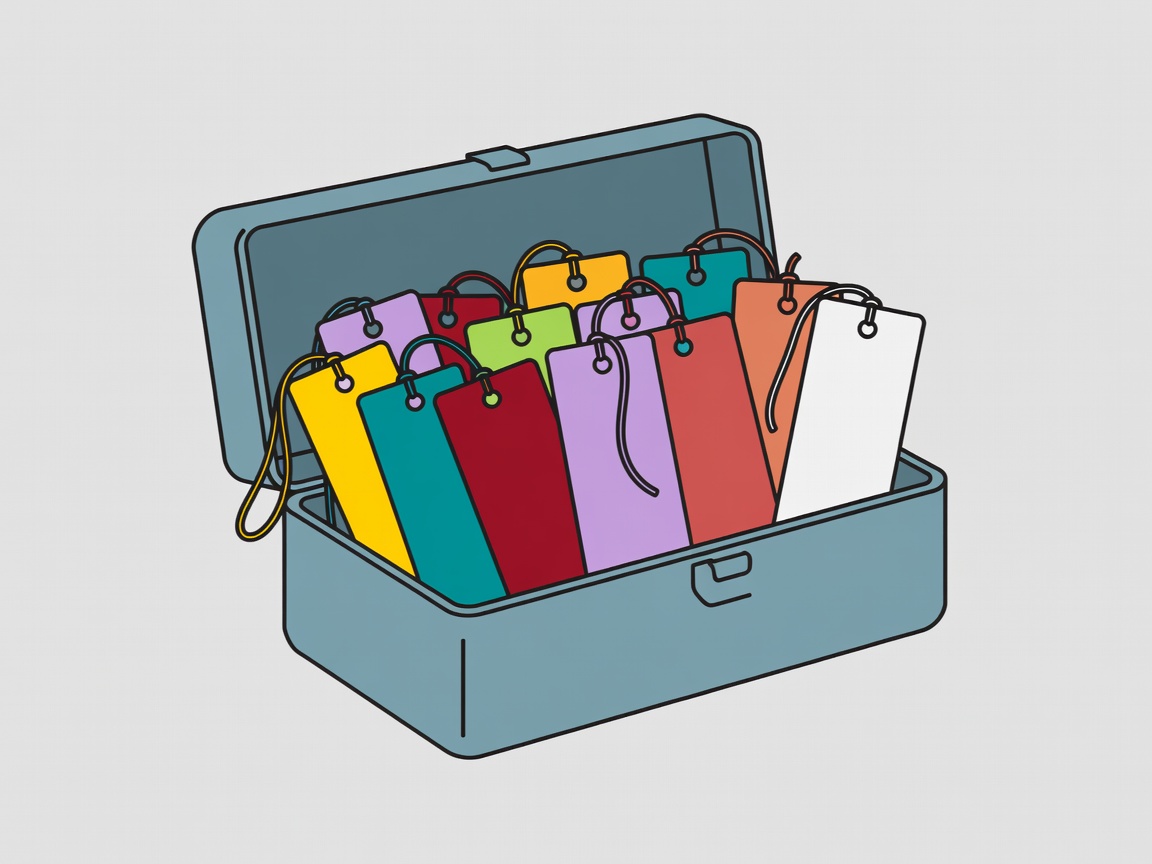
Save things you will actually find again
The task: a bookmarks bar so crowded that saving a link feels like throwing it into a drawer. Raindrop.io stores bookmarks with tags, previews and full-text search on paid plans, and syncs across browsers and phones.
Students and researchers should look at the Zotero Connector, which saves articles with proper citation details in one click. And if you only add one extension today, make it the Bitwarden password manager: it fills strong passwords for you and warns before you type them into the wrong site.
Tools for this stop: Raindrop.io, Zotero Connector and Bitwarden.
How to judge any extension
Extensions can see the pages you visit, so treat installing one like handing someone a spare key. Get them from the official stores: the Chrome Web Store, Firefox Add-ons at addons.mozilla.org, or Microsoft Edge Add-ons. Then read the permissions screen. A dark-mode tool needs access to page content; a simple timer does not.
Popular extensions are sometimes sold to new owners who add tracking or adverts. Recent update notes, an active support page and open-source code are all good signs. Fewer is better, too: five extensions you trust beat twenty you have forgotten.
Extension health check
- Installed from an official browser store
- Permissions match what the tool actually does
- Updated within the last year
- Clear developer name and privacy policy
- You have used it in the past month, otherwise remove it